Plugin Settings
Site-wide options live in Portfolio → Settings and apply to every portfolio block and project page.
Settings overview
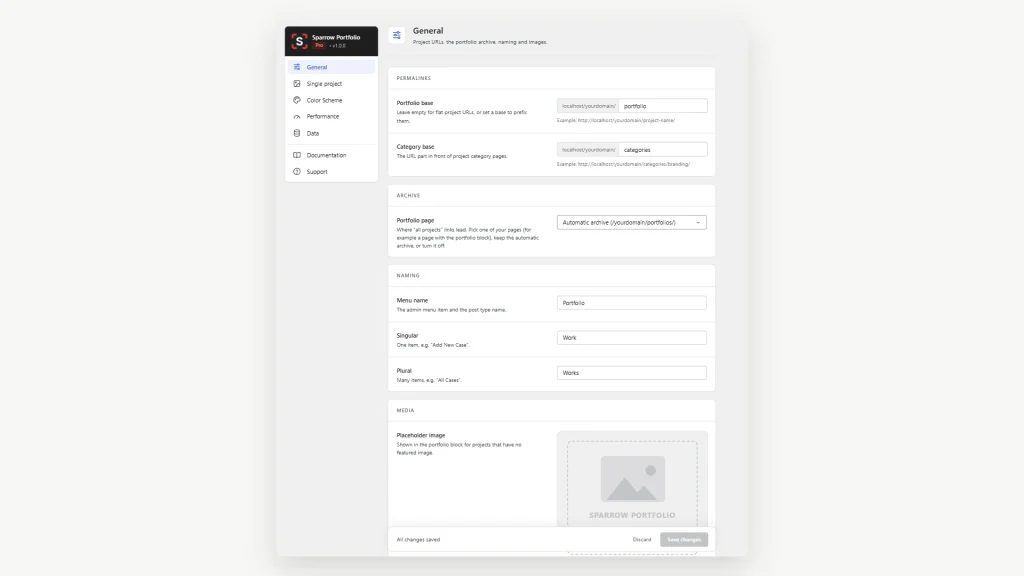
Tabs
| Tab | What is inside |
|---|---|
| General | Project URLs, the portfolio page, names of the post type, placeholder image, search shortcode |
| Single project | Navigation between projects and the password form |
| Color Scheme | Light and dark colours of the filter, sorting, search and pagination |
| Performance | How fonts picked in the block are delivered to visitors |
| Data | What happens to your projects when the plugin is removed, and a way to delete them all |
The line under the plugin name shows your edition: Free, Pro, or the name of a theme edition such as “Velaris Edition”.
Saving
All tabs share one save bar at the bottom of the page.
- Change any options, on one tab or several.
- The bar shows Unsaved changes and the buttons become active.
- Click Save changes to keep them, or Discard to return to the saved values.
If you try to leave the page with unsaved changes, the browser asks for confirmation. Notices from other plugins are hidden on this page to keep it clean.
General
The General tab sets the addresses of your projects, the main portfolio page, the names shown in the admin, the placeholder image and the search shortcode.
Permalinks
| Setting | What it does | Default |
|---|---|---|
| Portfolio base | The part of the address in front of a project. With work, a project lives at yoursite.com/work/project-name/. Leave empty for flat addresses: yoursite.com/project-name/ | empty |
| Category base | The part of the address in front of a project category: yoursite.com/categories/branding/ | categories |
An example of the resulting address is shown under each field. After saving, the new addresses work at once; you do not need to visit Settings → Permalinks.
Changing a base on a live site changes every project address, and old links stop working unless you add redirects. Pick the base before you share links.
Archive
Portfolio page decides where “all projects” links lead.
Pick the page that holds your Sparrow Portfolio block. It is used by the “all projects” button, the search shortcode and the automatic archive address.
Naming
Rename the post type to match how you talk about your work.
| Setting | Used for | Example |
|---|---|---|
| Menu name | The admin menu item and the post type name | Works |
| Singular | One item, as in “Add New Case” | Case |
| Plural | Many items, as in “All Cases” | Cases |
Empty fields use the defaults: Portfolio, Project, Projects. Naming changes the admin labels only, not the addresses.
Media
Placeholder image is shown in the portfolio block for projects that have no featured image. Click Replace image to choose one from the Media Library, or Reset to default to return to the built-in placeholder.
Search
| Setting | What it does | Default |
|---|---|---|
| Search shortcode | The shortcode for a project search button outside the block, with a Copy button |
|
| Load on every page | Turn on if the search shortcode sits in your header or menu, so the button never flashes unstyled while the page loads | Off |
The shortcode and its attributes are described in “Archive and search shortcode”.
Single project and Color Scheme
These two tabs control the project page navigation, the password form, and dark mode.
Single project
The navigation between projects and the password form are described in Project page and archive.
Color Scheme
The Color Scheme tab switches the portfolio controls (filter, sorting, search, pagination) between light and dark colours.
| Scheme | When the dark colours are used |
|---|---|
| Light (default) | Never |
| Dark | Always. Choose this for a site with a dark background |
| Auto (visitor’s system setting) | When the visitor’s device is set to dark mode |
| Follow the theme (dark mode selector) | When your theme switches to dark mode |
Follow the theme
Use this when your theme has its own light/dark switch. The portfolio then changes together with the theme, instantly, without a page reload.
- Choose Follow the theme (dark mode selector).
- In Dark mode selector, enter the class or attribute your theme adds to the page in dark mode.
- Click Save changes.
How to find the selector:
- Open your site and switch the theme to dark mode.
- Right-click the page and choose Inspect.
- Look at the
<html>and<body>tags at the top. A class or attribute that appears only in dark mode is what you need.
| You see in the page code | Enter |
|---|---|
<html class="dark-theme"> | .dark-theme |
<body class="is-dark"> | .is-dark |
<html data-theme="dark"> | [data-theme="dark"] |
Several selectors can be listed with commas. Enter the mark of the dark state, not the class of the switch button itself.
Text colours in dark mode
Title, category and date on the cards take their colour from your theme by default, so they follow dark mode on their own. If you set your own colours in the block, add dark-mode colours too: with any scheme other than Light, the Color field in Style → Title / Category / Date has Light and Dark tabs.
Your own colours for the controls
The controls are drawn with eight CSS variables. Override them in your theme or in Custom CSS to recolour the filter, sorting, search and pagination; the list is in “CSS variables” in the Developers section.
Performance and Data
Performance controls how fonts are loaded; Data controls what happens to your content when the plugin is removed.
Performance
| Setting | What it does | Default |
|---|---|---|
| Load Google Fonts locally | Fonts picked in the block are downloaded once to your uploads folder and served from this site, so visitors never connect to Google | Off |
| Font cache | Shows how many font files are stored and their size. Clear cache removes them; they are fetched again the next time a page with the block is opened | Empty |
Local fonts keep visitors’ IP addresses away from Google (GDPR), save the page extra connections and keep working where Google is blocked.
The first page view after turning it on takes a moment longer while the files are downloaded. If your server cannot write to the uploads folder, fonts keep loading from Google.
Use Clear cache after you change fonts in the block, to remove files that are no longer used, or if a font looks broken.
The setting works only when a font is chosen in Style → Title / Category / Date → Font Family. With Theme Default nothing is loaded from Google.
Data
Delete data on uninstall is off by default: when you delete the plugin, your projects, categories and settings stay in the database. Install the plugin again and everything is back.
With the switch on, deleting the plugin also deletes all projects, categories and settings. Images stay in the Media Library. A warning appears under the switch and on the Plugins screen.
Deactivating or updating the plugin never deletes anything, including an update from a zip with Replace current with uploaded.
Danger zone
Delete all projects permanently removes every project, including drafts and trashed ones. Use it to clear demo content.
- Tick Also delete categories if the categories should go too.
- Type
remove portfolioin the confirmation field. - Click Delete all projects.
This cannot be undone, so make a backup first. Images stay in the Media Library.
Still stuck? Write to support.
Contact