Introduction
Sparrow Portfolio adds a Portfolio post type and one block that shows your projects as a grid, masonry, list or slider. This documentation covers plugin version 1.0.0.
How this documentation is organised
Each tab of this doc is one section of the documentation, and each second-level heading inside a tab is one article. Copy them to the site in that shape: section first, then its articles in the order shown.
| Section (tab) | Articles |
|---|---|
| Getting started | Installation; Quick start; Managing projects; Free version and PRO add-ons |
| Block: Content & Layout | Adding the block; Content; Layout; Slider settings |
| Block: Toolbar & Pagination | Category Filter and Sort Control; Position; Search; Pagination and Behavior |
| Block: Style & Tools | Media; Text; Interaction; Tools |
| Project page & archive | Project page template; Navigation; Password protection; Archive and search shortcode |
| Plugin settings | Overview; General; Single project and Color Scheme; Performance and Data |
| PRO add-ons | How add-ons work; Sway Slider; Effects and Custom Cursor |
| Developers & FAQ | Templates and functions; CSS variables; Troubleshooting |
Installation
Sparrow Portfolio installs like any WordPress plugin and needs no setup before the first use.
Requirements
| Requirement | Version |
|---|---|
| WordPress | 6.8 or newer |
| PHP | 8.0 or newer |
| Editor | Block editor (Gutenberg). Classic editor and page builders use the shortcode |
Install from the WordPress dashboard
- Go to Plugins → Add New Plugin.
- Search for Sparrow Portfolio.
- Click Install Now, then Activate.
Install from a zip file
- Go to Plugins → Add New Plugin → Upload Plugin.
- Choose
sparrow-portfolio.zipand click Install Now. - Click Activate Plugin.
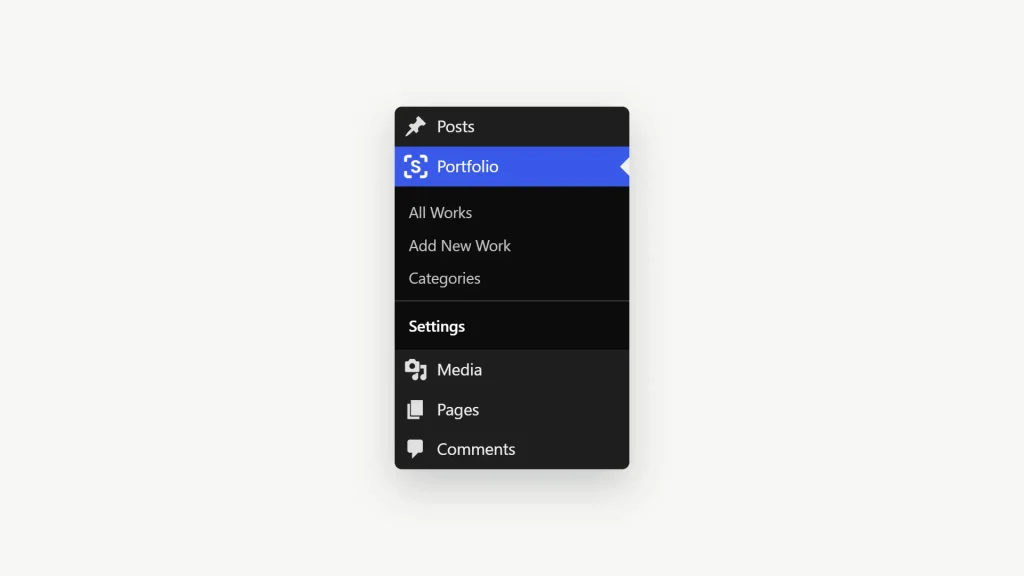
After activation a new Portfolio item appears in the admin menu, with All Projects, Add New Project, Categories and Settings inside.
Updating
Updates arrive through the normal Dashboard → Updates screen. To update from a zip, upload it the same way and choose Replace current with uploaded.
Your projects and settings stay in place; do not delete the plugin first.
Quick start
You need two things to get a portfolio on a page: at least one project, and the Sparrow Portfolio block.
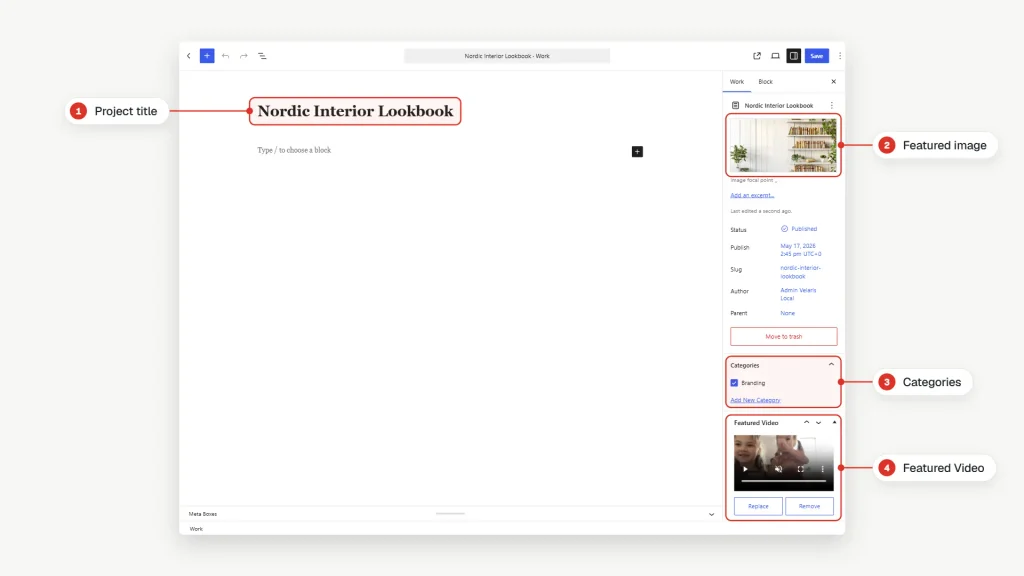
01Create a project
- Go to Portfolio → Add New Project.
- Enter the project title.
- Build the project page in the editor: text, images, galleries, any blocks.
- In the sidebar, set a Featured image. It becomes the project thumbnail in the grid.
- In Categories, tick or create a category, for example Branding.
- Click Publish.
Repeat for a few more projects so the grid has something to show.
02Add the block to a page
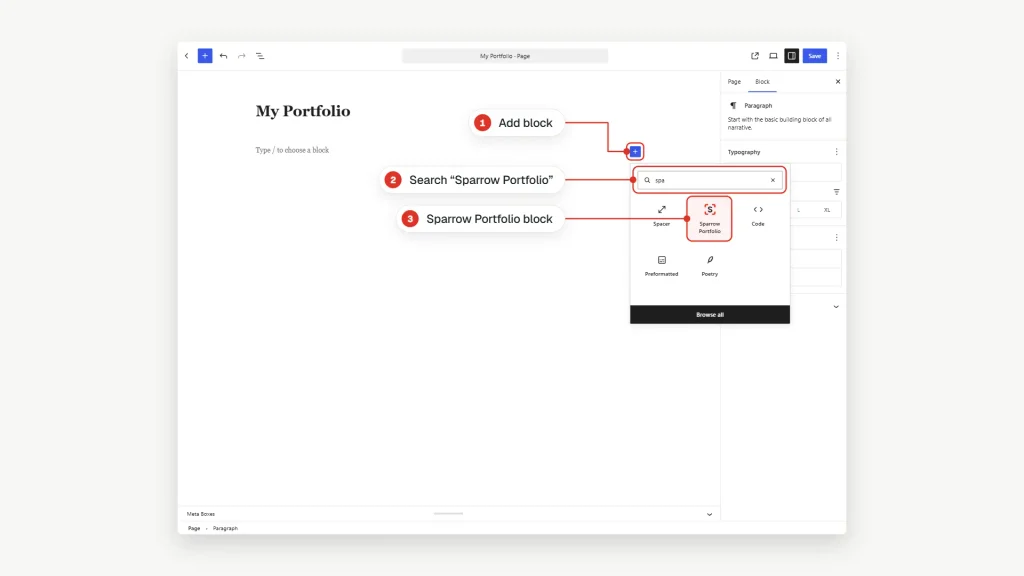
- Open the page where the portfolio should appear, or create a new one.
- Click the + inserter and search for Sparrow Portfolio.
- Click the block. It shows your six latest projects in a three-column grid.
03Adjust and publish
- Select the block and open the Block tab of the right sidebar.
- Pick a layout in Layout, turn on the filter in Toolbar & Pagination, and style the cards in Style.
- Click Save or Publish.
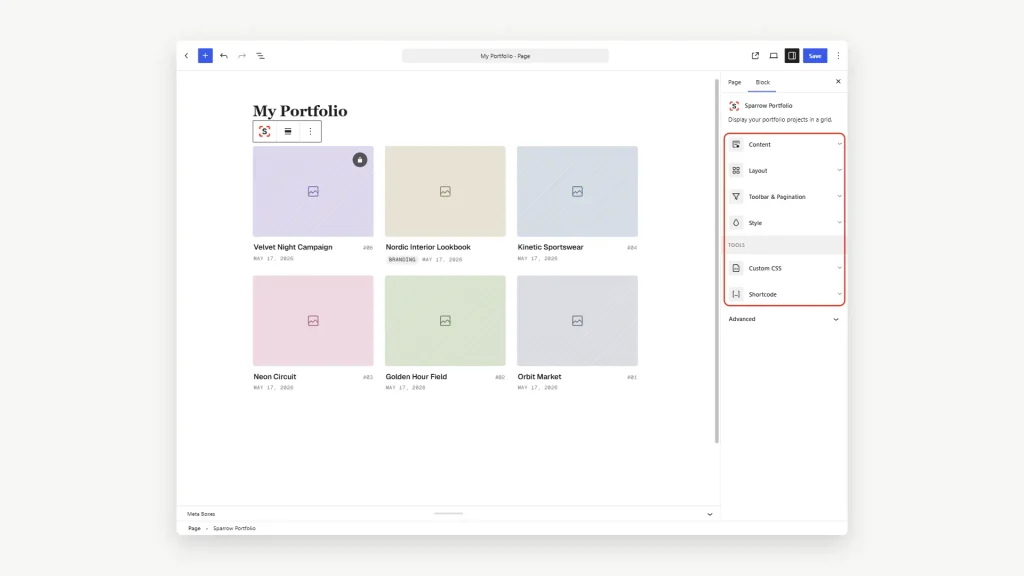
The block is live: visitors can open a project by clicking its card.
What next
- Change the project URL (
/portfolio/project-name/) in Portfolio → Settings → General. - Choose which page is your main portfolio page in the same tab.
- Rename “Portfolio” and “Projects” to your own words, for example Works and Cases.
Managing projects
Projects are a separate content type, managed under Portfolio the same way posts are managed under Posts.
Project fields
| Field | Where | Used for |
|---|---|---|
| Title | Editor | Card title in the block, page title, search |
| Content | Editor | The project page itself |
| Excerpt | Sidebar → Excerpt | Short description in layouts that show one (Sway Slider) |
| Featured image | Sidebar → Featured image | Thumbnail in every layout |
| Categories | Sidebar → Categories | Category label on the card, the filter, “By Category” source |
| Featured Video | Sidebar → Featured Video | Optional video shown on the thumbnail |
| Order | Sidebar → Page Attributes → Order | Manual order when the block sorts by Menu Order |
| Author | Sidebar → Author | “By Author” source |
Categories
Go to Portfolio → Categories to add, rename or delete categories. A project can have several categories. The card shows the first one; the filter lists every category that has at least one published project.
Featured image and placeholder
A project without a featured image shows a placeholder in the block. Replace the built-in placeholder with your own in Portfolio → Settings → General → Media → Placeholder image.
Use WebP or JPG for thumbnails rather than PNG. The block tells the browser which image size fits the column width, so visitors download a small file on phones and a larger one on desktop.
Featured Video
A project can have a video that plays on its thumbnail in the grid.
- Open the project and find the Featured Video panel in the sidebar.
- Click Select Video and choose a video file from the Media Library.
- Update the project.
- In the block, open Style → Interaction → Featured video and choose Play on Hover or Autoplay.
The video is muted and loops. The featured image stays as the poster until the video starts.
Manual order
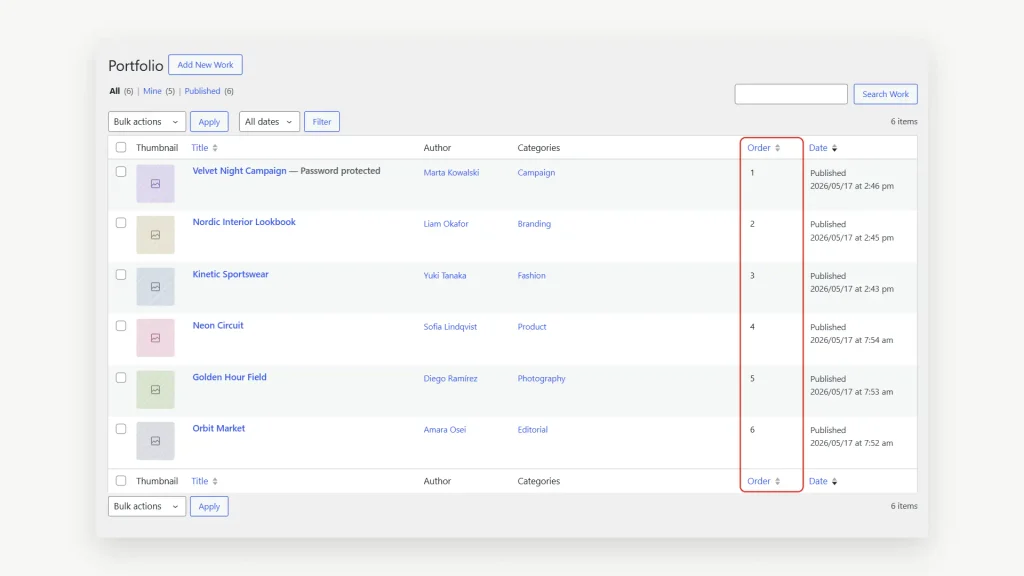
To arrange projects by hand, give each project a number in Page Attributes → Order and set the block to Order By: Menu Order. The Order column in Portfolio → All Projects shows the numbers and can be sorted; change a number without opening the project through Quick Edit.
Password protection
Set Visibility → Password protected in the project sidebar to lock a project. See “Password-protected projects” in the Project
Still stuck? Write to support.
Contact